Installing AdGuard
Installing AdGuard Home in Docker. Includes first-run setup, disabling the setup UI, and enabling HTTPS with self-signed certificate.
Deploy AdGuard Home in Docker using a dedicated service user iamdocker, complete the first-run setup UI, then enable HTTPS for the admin interface using a locally generated certificate stored in a mounted volume.
Prerequisites#
- Docker & Docker Compose installed on the host.
- Service account
iamdockerthat is a member of thedockergroup. - Decide the host IP(s) or interfaces AdGuard will bind to.
Directories (create as iamdocker)#
sudo -u iamdocker mkdir -p /opt/dockerstacks/adguard/{confdir,workdir,certs}docker-compose — first run (setup UI)#
Create /opt/dockerstacks/adguard/docker-compose.yml for first-run UI exposed on port 3000.
(port 3000 will removes after setup).
services:
  adguardhome:
    image: adguard/adguardhome:latest
    container_name: adguardhome
    restart: unless-stopped
    networks:
      - agh-bridge
    ports:
      # DNS (bind only to interfaces you intend to serve)
      - "100.109.X.X:53:53/tcp"
      - "100.109.X.X:53:53/udp"
      - "192.168.X.X:53:53/tcp"
      - "192.168.X.X:53:53/udp"

      # Admin UI (HTTP)
      - "100.109.X.X:11080:80/tcp"
      - "192.168.X.X:11080:80/tcp"

      # First-run setup UI — remove after initial configuration
      - "100.109.X.X:3000:3000/tcp"
      - "192.168.X.X:3000:3000/tcp"

    volumes:
      - /opt/dockerstacks/adguard/workdir:/opt/adguardhome/work
      - /opt/dockerstacks/adguard/confdir:/opt/adguardhome/conf

networks:
  agh-bridge:
driver: bridgeStart docker container as iamdocker.
sudo -u iamdocker docker compose -f /opt/dockerstacks/adguard/docker-compose.yml up -dAccess the setup wizard via the initial UI port (e.g., http://<host-ip>:3000).
-
Click Get started.
-
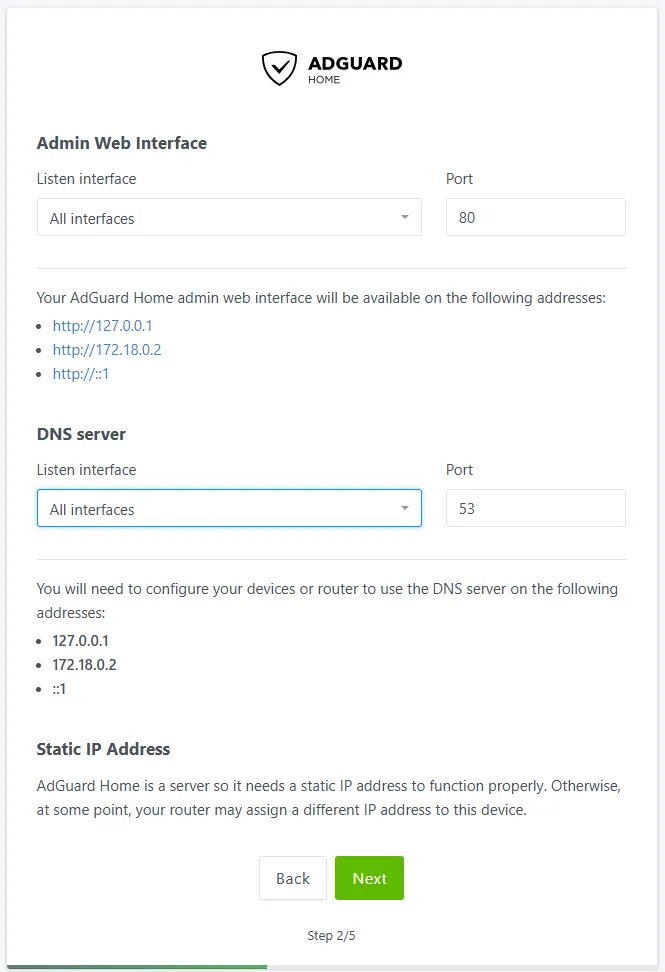
Verify DNS listen interfaces/Admin Web interfaces and ports; adjust if needed.
-
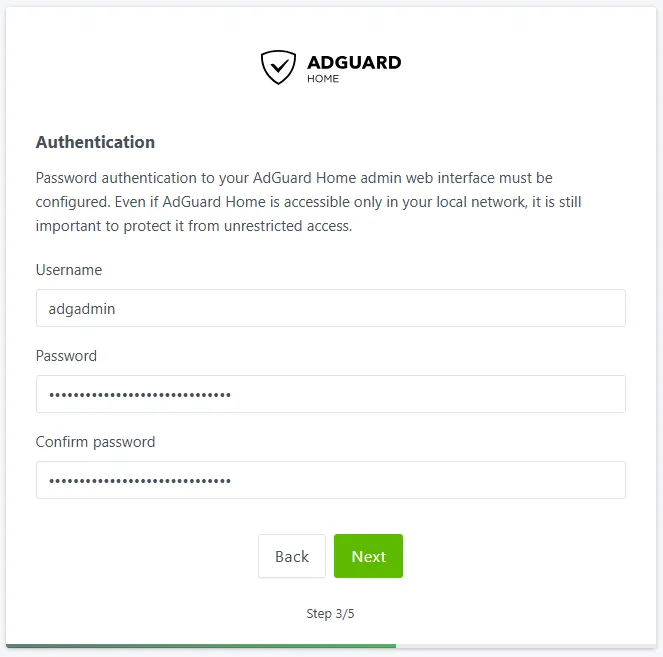
Set admin username/password.
-
Configure DNS distribution (router, Tailscale, or per-device).
Recommendation: set a reliable secondary DNS (e.g.,9.9.9.9) as a fallback.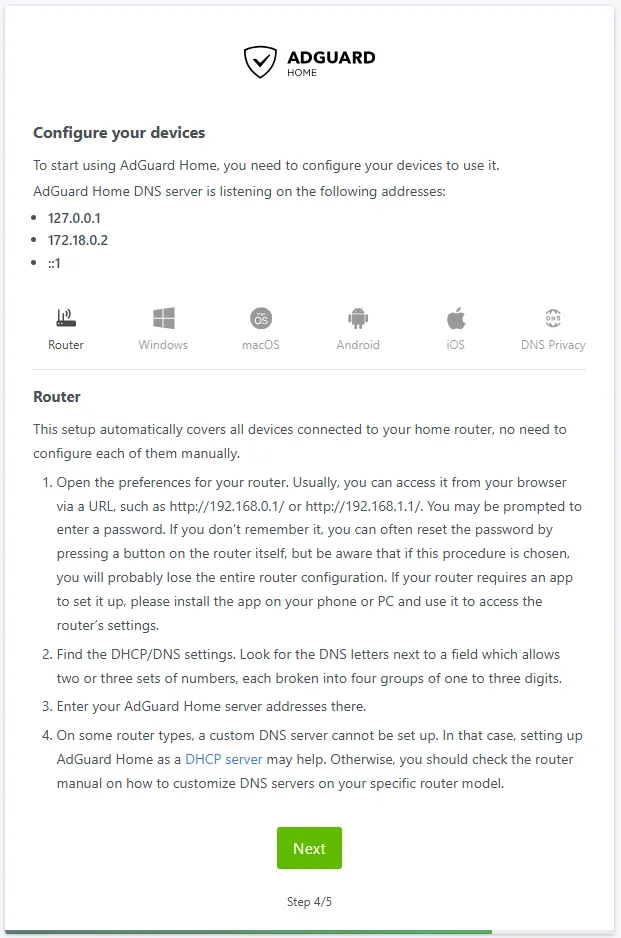
Router Configuration
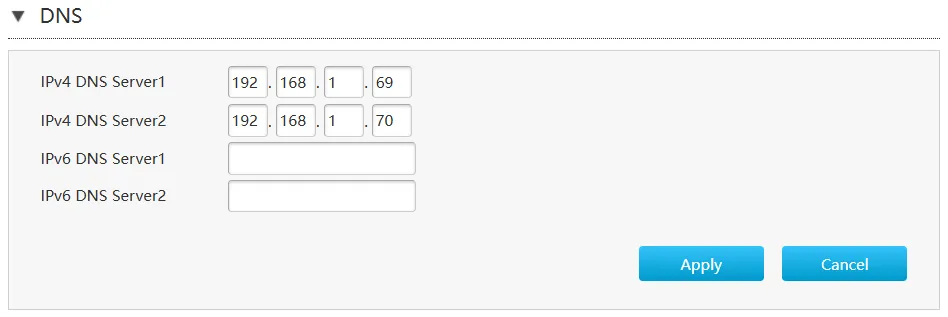
If using Tailscale, enable
Override local DNSto push AdGuard to your tailnet.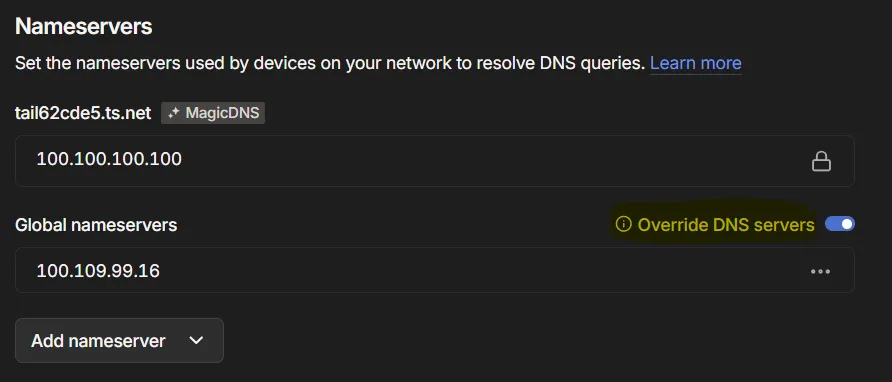
-
Complete the wizard. The service will restart automatically on your set port number.
Remove setup UI (port 3000)#
After initial setup, stop the stack, remove port 3000 entries from docker-compose.yml, then restart.
sudo -u iamdocker docker compose -f /opt/dockerstacks/adguard/docker-compose.yml down
# edit compose file to remove the 3000 ports
sudo -u iamdocker docker compose -f /opt/dockerstacks/adguard/docker-compose.yml up -dMinor configuration changes (example)#
-
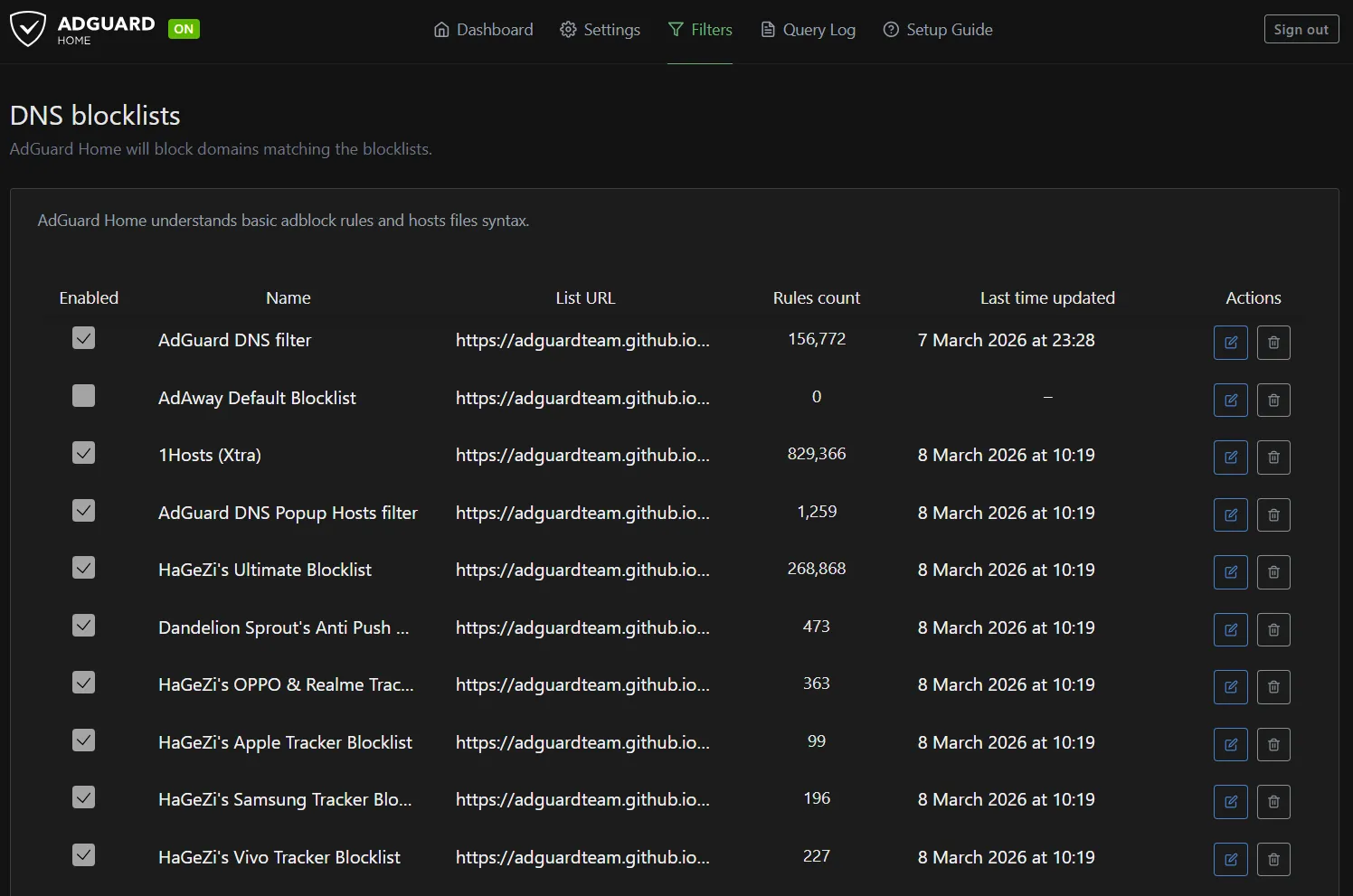
Blocklists: Navigate to Filters > DNS Blocklists. Subscribe to additional lists (e.g., AdGuard’s default DNS blocklist, plus StevenBlack or OISD for comprehensive coverage). Enable and apply.
-
DNS Rewrites: Under Settings > DNS Rewrites, add entries for local resolution
(e.g., pi.local → 192.168.X.X and 100.109.X.X for seamless access to the Pi).
This simplifies internal navigation without public DNS reliance.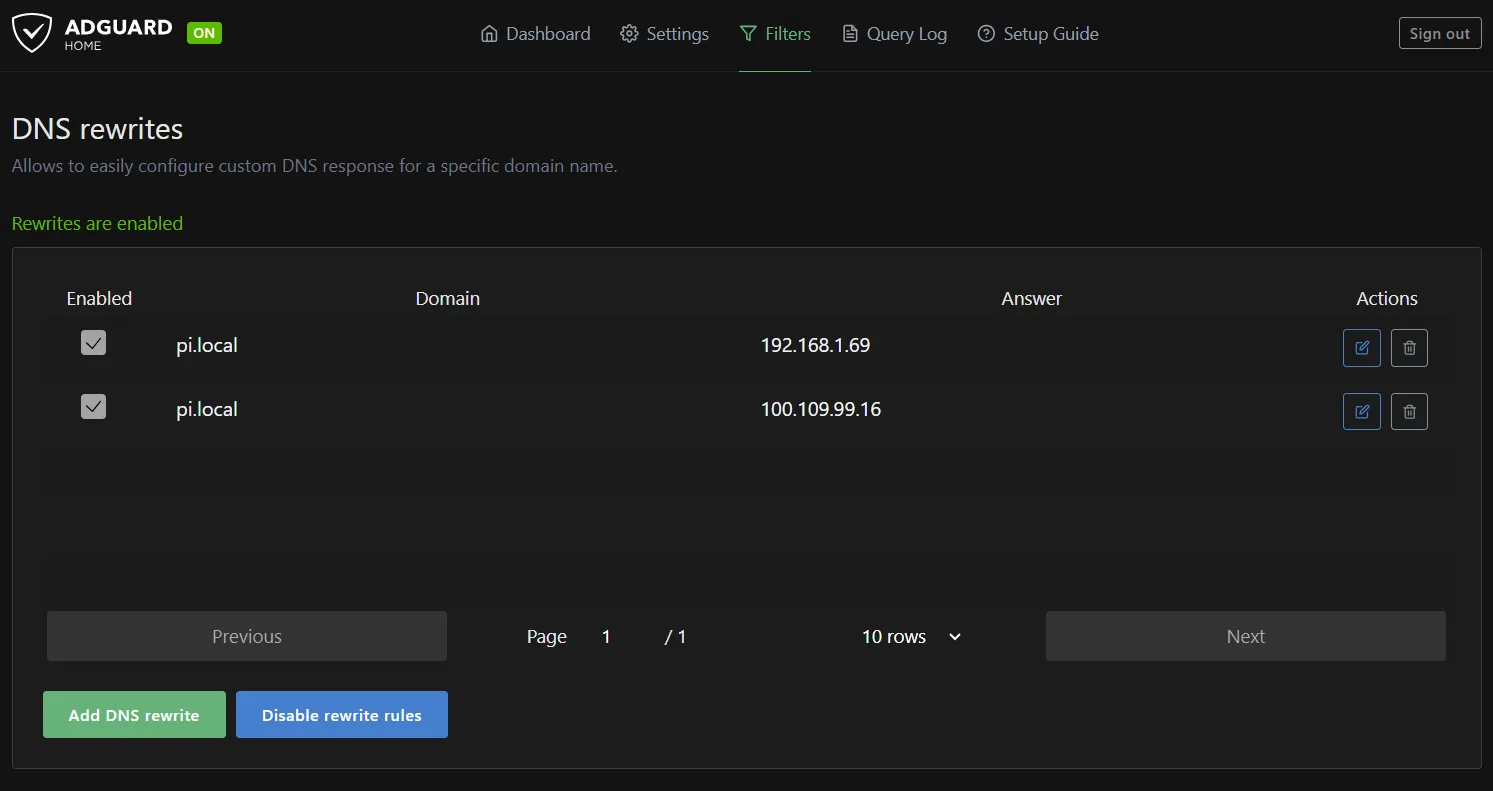
Enable HTTPS on Admin UI (self-signed)#
-
Stop the stack and edit docker-compose.yml to add HTTPS ports and certs volume.
bashsudo -u iamdocker docker compose -f /opt/dockerstacks/adguard/docker-compose.yml down
yamlservices: adguardhome: image: adguard/adguardhome:latest container_name: adguardhome restart: unless-stopped networks: - agh-bridge ports: # DNS (unchanged) - "100.109.X.X:53:53/tcp" - "100.109.X.X:53:53/udp" - "192.168.X.X:53:53/tcp" - "192.168.X.X:53:53/udp" - "192.168.X.X:53:53/tcp" - "192.168.X.X:53:53/udp" # Admin UI HTTP (redirects to HTTPS) # - "100.109.X.X:11080:80/tcp" # Admin UI HTTPS (Limited to VPN for secuirty) - "100.109.X.X:11443:443/tcp" volumes: - /opt/dockerstacks/adguard/workdir:/opt/adguardhome/work - /opt/dockerstacks/adguard/confdir:/opt/adguardhome/conf - /opt/dockerstacks/adguard/certs:/opt/adguardhome/certs # New volume networks: agh-bridge: driver: bridge -
Generate self-signed certificate as
iamdocker.Change the
pi.localwith your local DNS address.
bashsudo -u iamdocker openssl req -x509 -nodes -days 365 \ -newkey rsa:2048 \ -keyout /opt/dockerstacks/adguard/certs/adguard.key \ -out /opt/dockerstacks/adguard/certs/adguard.crt \ -subj "/CN=pi.local" -
Configure AdGuard to use the cert
edit
/opt/dockerstacks/adguard/confdir/AdGuardHome.yamland update thetlsblock.
yamltls: enabled: true force_https: true port_https: 443 certificate_path: /opt/adguardhome/certs/adguard.crt private_key_path: /opt/adguardhome/certs/adguard.key -
Restart the stack
bashsudo -u iamdocker docker compose -f /opt/dockerstacks/adguard/docker-compose.yml up -d -
Access the
https://<host-ip>:11443. Browsers will warn for a self-signed certificate; import the.crtinto clients you control or replace with a CA-signed cert.
Recommendation: production / public access#
For public exposure, terminate TLS at a reverse proxy (Caddy/Traefik/Nginx with ACME). Let the proxy handle certificates and proxy traffic to AdGuard’s admin port. Disable AdGuard’s internal TLS in that configuration.
AdGuard Home is now running as a containerized DNS service in the homelab.
All devices on the LAN and Tailscale network can now use the Pi for centralized DNS filtering and resolution.